
Work from the initial scan.
Use a supplied smile design to create and refine a Trial Smile in the practice. Export the STL for your printing workflow and review the proposed appearance with your patient.
INTRODUCING SMILESHELL BETA 1.0
Turn an initial scan and a supplied smile design into a Trial Smile STL. One focused workspace for dentists and labs exploring the patient’s desired smile over unprepared teeth.
Sign in or request beta access.
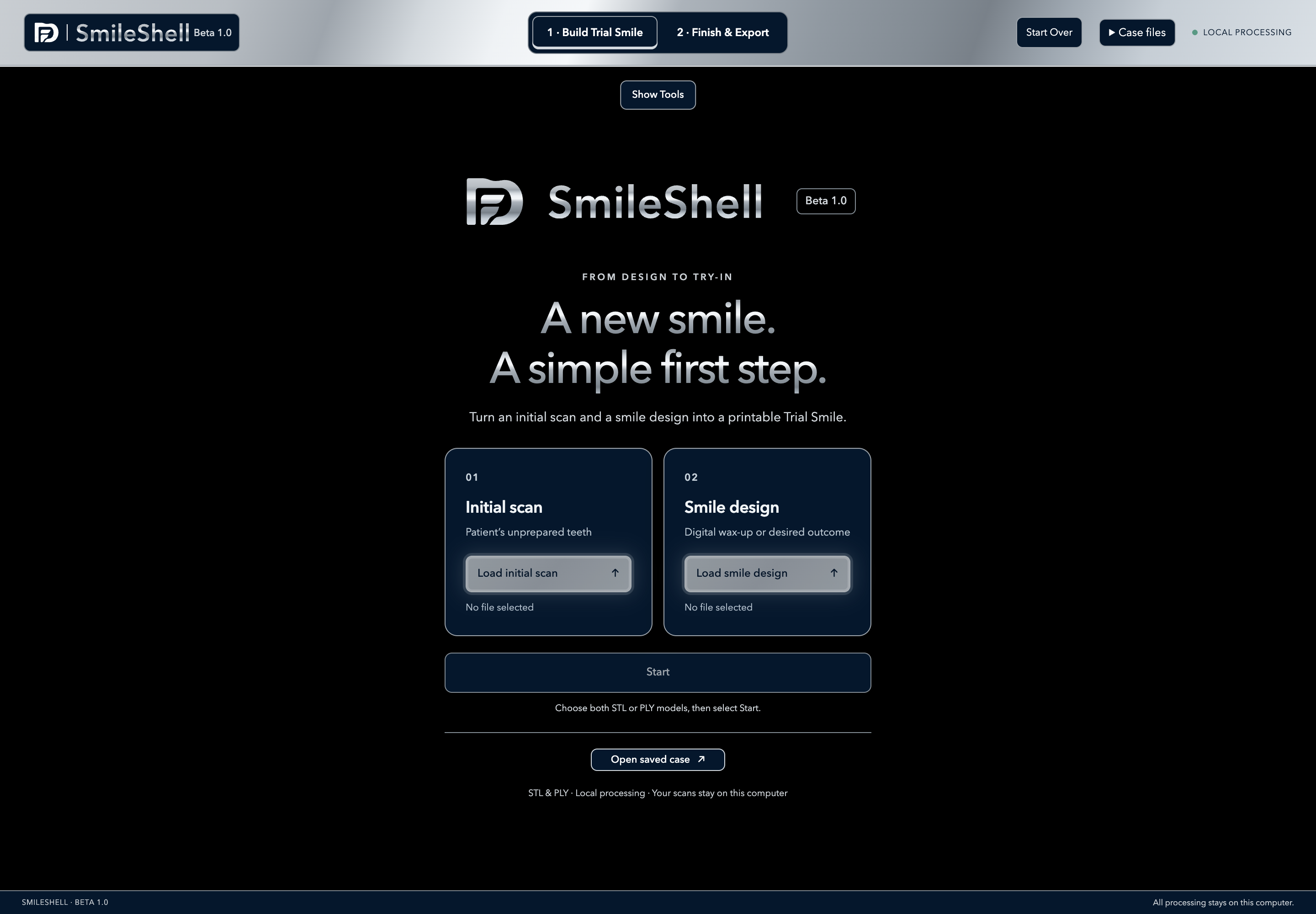
FROM DESIGN TO TRY-IN
SmileShell brings the initial scan and desired outcome into a dedicated Trial Smile workflow, from registration through finishing.
Import the initial scan of unprepared teeth and the smile-design model as STL or PLY files, in either order. Register the smile design to the initial scan, then adjust its size if needed.
A common coordinate systemDraw the capture perimeter on the initial scan. Review fit clearance and minimum thickness, then build the Trial Smile. One overall progress indicator tracks construction through preparation for finishing.
One construction workspacePreview loop or brush trimming, review highlighted extra pieces, and smooth the result. Export the Trial Smile STL and save a complete case for later editing.
Trim · Smooth · Undo & RedoIN THE PRACTICE. IN THE LAB.
Use a supplied smile design to create and refine a Trial Smile in the practice. Export the STL for your printing workflow and review the proposed appearance with your patient.
Build a Trial Smile from the dentist’s initial scan and your completed smile design. Send the STL to the practice for printing, or include a fabricated trial with the wax-up workflow.
SmileShell’s beta focus is a brief, dentist-supervised in-office smile trial over existing unprepared teeth, removed during the same visit. Clinical use depends on appropriate review and a suitable material and fabrication workflow.
YOUR CASE STAYS WITH YOU
Scans, registration, construction and finishing are processed on your computer. The account service manages sign-in and beta access; it does not receive your case geometry.
Export the STL for the next step in your workflow. Download a complete case to keep the source models, capture perimeter, settings and finishing edits together. Browser recovery is a local convenience, not cross-device case storage.
A FEW USEFUL DETAILS
You supply the smile-design or desired-outcome model, such as a digital wax-up, together with the initial scan. SmileShell uses those models to create the Trial Smile; the desired tooth shapes are defined in your supplied design.
After registration, Smile design size lets you preview a uniform enlargement from 100% to 150% before applying it. The whole arch grows while tooth proportions stay the same; tooth spacing grows too. The initial scan stays fixed. Applying a new size after building requires rebuilding the Trial Smile.
SmileShell focuses on trial smiles over unprepared natural teeth. ShellGen is a separate FormaDent product for temporary dental restorations on prepared teeth. Explore ShellGen for that workflow.
Yes. Sign in with the same email and password you use for ShellGen. SmileShell access is managed separately and depends on your account’s SmileShell approval status.
Use Trim in loop or brush mode and the Smooth tool. For a trim loop, double-click or choose Close loop or Pause drawing to see the preview, then press Enter/Return or Apply trim to accept it. Disconnected pieces other than the largest are highlighted for review and one-click removal. Undo and Redo let you revisit finishing changes; complete case files retain the edits.
Use Show Tools and Hide Tools to make more room for viewing the models. Tools open when models load, and Show Tools prompts you if you hide them during a case. Start Over returns to the start screen without deleting saved cases. Save a complete case first if you want to keep your current work.
Open the SmileShell account page to sign in or request beta access. Keep complete case downloads when moving work between computers.
SMILESHELL BETA 1.0